
You can build a private, usable digital health record at home by choosing a single hub (Apple Health, Google Health/Health Connect, or an export-first approach), connecting your smart scale and wearables, and scheduling regular exports and audits. Here is the action plan you can start in the next hour:
- Enable your chosen hub app on your phone
- Pair your smart scale (the Uvirello Smart Electronic Weight Scale works with both Apple Health and Google Health via its companion app)
- Verify write permissions so only one app writes each metric
- Run a manual export and save it to a cloud folder
Pro Tip: The most common setup mistake is letting two apps both write the same metric — for example, your scale app and your wearable both logging body weight. The result is inflated step counts or doubled weight entries. Assign one writer per metric before you add a second device.
Key Takeaways
Building a home digital health record works when you commit to one hub, one writer per metric, and a consistent export routine from the start.
| Point | Details |
|---|---|
| Choose one hub | Pick Apple Health (iPhone) or Google Health/Health Connect (Android) as your single source of truth. |
| One writer per metric | Assign only one app to write each metric; duplicates from two writers corrupt your trends. |
| Export regularly | Run a full export monthly and save a quarterly archive outside your hub app in CSV or JSON format. |
| Use rolling averages | A 7-day rolling average for weight reveals real trends; single daily readings are too noisy to act on. |
| Uvirello as your scale | The Uvirello Smart Electronic Weight Scale pairs with both major hubs and writes body fat, BMI, and muscle mass directly to your record. |
Table of Contents
- Which metrics should you track in your home health record?
- How do you choose the right hub for your home record?
- How to connect your smart scale and wearables to the hub
- How to export and back up your home health record
- How do you turn raw measurements into useful trends?
- Want to go further? Build a custom home health record system
- Privacy checklist and what this record actually is
- Why your home health record matters more than you think
- Uvirello's Smart Electronic Weight Scale: the right hardware to start with
- Useful resources for setup, export, and deeper learning
- Sources
Which metrics should you track in your home health record?
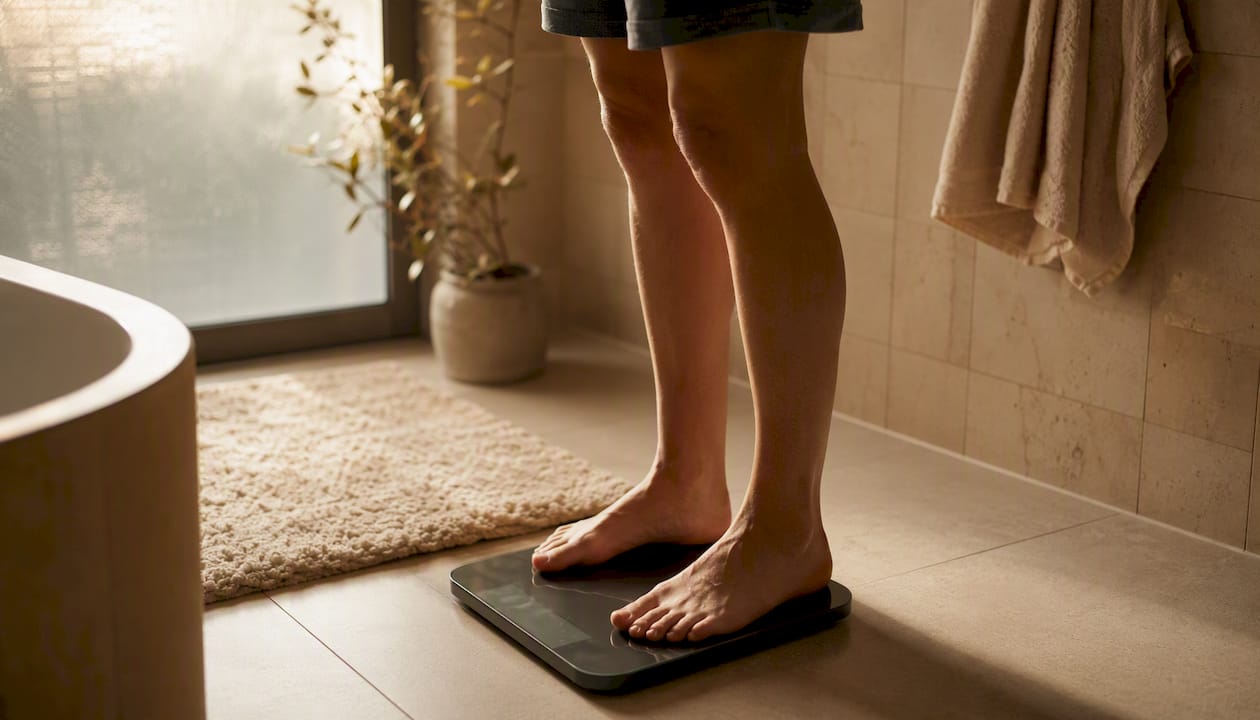
Your home record stays useful when it covers the right metrics without becoming a data dump. For a fitness-focused setup, the essentials are weight, body fat percentage, BMI, muscle mass (when your scale reports it), and timestamped notes. Those five give you the core picture of body composition over time.
Secondary metrics worth adding when you have the devices: resting heart rate, daily step totals, sleep score, and logged workout sessions. Blood pressure or glucose readings belong here only if you already use those monitors. Piling in every available metric from day one tends to obscure the trends that actually matter.
Sampling frequency matters as much as which metrics you choose. Weigh daily if you want short-term sensitivity to water retention and diet shifts, but use a 7-day rolling average for trend analysis — a single morning reading tells you almost nothing on its own. Wearable data (steps, heart rate, sleep) records continuously, so no extra action is needed there. As one practical guide notes, context notes and automation matter more than perfect precision when building a sustainable home monitoring system.
Pro Tip: Measure at the same time each day, in the same clothing (or none), on the same surface. Morning, post-bathroom, pre-breakfast is the standard. Even a small change in routine adds noise that looks like a real trend.
How do you choose the right hub for your home record?
The hub is where all your device data lands and gets organized. Three practical options exist, each with real tradeoffs.
Apple Health suits you if you use an iPhone and want a mature, privacy-respecting aggregator. It stores data on-device by default, supports manual entry, and lets you manage data sources and priority order per metric via Data Sources & Access. The export format is XML (convertible to CSV), and the ecosystem of compatible apps is wide.
Google Health with Health Connect is the Android equivalent. Google Health connects third-party apps via Health Connect on Android or Apple Health on iPhone, though what appears in Google Health depends on what each partner app chooses to share. Metric availability varies more than on iOS.
Export-first / CSV approach fits users who want full ownership from the start or who use both iOS and Android devices. You pull exports from each device app manually or via a sync service, then consolidate in a spreadsheet or lightweight dashboard. More setup work, but no platform lock-in.
| Feature | Apple Health | Google Health + Health Connect | Export-first / CSV |
|---|---|---|---|
| Integration breadth | Wide | Moderate (varies by app) | Manual or via sync service |
| Write-permission control | Per-metric in Data Sources & Access | Per-app in Connections | You control entirely |
| Historical export | XML export (Health app) | Limited native export | Full control |
| Cross-platform ease | iOS only | Android primary | Platform-agnostic |
A layered health tech stack typically places Apple Health or Google Health/Health Connect as the passive aggregator, with visualization and export tools on top. That architecture works well for most home users.
How to connect your smart scale and wearables to the hub
Pairing to Apple Health
- Open your scale's companion app and complete the initial Bluetooth pairing.
- When prompted, grant the app permission to write to Apple Health (body weight, body fat, BMI).
- In the Health app, go to Browse > Body Measurements > Body Weight > Data Sources & Access and confirm your scale app appears and is ranked first.
- Take a test measurement and verify the reading appears in Health within a few minutes.
Pairing to Google Health / Health Connect
- Open your scale's companion app, complete Bluetooth pairing, then open Settings > Connected Apps (or Health Connect in Android settings).
- Grant the scale app permission to write body weight and body fat to Health Connect.
- Open Google Health and go to Profile > Connections to confirm the scale app is listed.
- Take a test measurement and check that it appears in Google Health's body measurements view.
Wearable checklist
- Confirm your wearable writes only the metrics it measures best (steps, heart rate, sleep).
- If your wearable also writes body weight, disable that write permission — let the scale own weight.
- On Android, disable battery optimization for both the scale app and Health Connect to prevent background sync failures.
- Check that device and phone timezones match; a mismatch creates timestamp errors that look like duplicate entries.
Sync is immediate for most apps when the phone is nearby, but some scale apps require you to open the app to trigger a sync. If a reading is missing, open the companion app, pull down to refresh, then check the hub again.
How to export and back up your home health record
Owning your data means keeping a copy outside the hub app. CSV and JSON are the formats to prefer: both open in any spreadsheet tool and survive platform changes.
Export paths:
- Apple Health: Health app > profile icon > Export All Health Data (ZIP file containing XML; convert with Health Auto Export app for CSV/JSON).
- Google Health / Health Connect: Health Connect settings > Manage data > Export (JSON format).
- FitnessSyncer: FitnessSyncer bridges gaps between platforms and lets you export or back up data outside the device vendor's ecosystem, including manually logged entries that don't originate from a cloud sensor.
Backup checklist:
- Automated weekly export to Google Drive or iCloud (use Health Auto Export on iOS with a Shortcuts automation).
- Manual full export monthly, saved to a second location (external drive or a different cloud service).
- Quarterly archive: rename the export file with the date and move it to a long-term folder.
| Backup method | Format | Frequency | Tool |
|---|---|---|---|
| Apple Health full export | XML / CSV | Monthly | Health Auto Export |
| Health Connect export | JSON | Monthly | Health Connect settings |
| Third-party sync backup | CSV / JSON | Weekly or on-demand | FitnessSyncer |
How do you turn raw measurements into useful trends?
A single weight reading is noise. A 7-day rolling average is a signal. The difference is what separates useful tracking from obsessive checking.
Start with a rolling 7-day average for body weight: add the last 7 daily readings and divide by 7. That number moves slowly and filters out water retention swings.
Overlay contextual events with your measurements. If you traveled for a week or started a new training block, add a note on that date. When you look back at a trend graph, those annotations explain the spikes and dips that would otherwise look like data errors. Combining metrics with contextual notes is one of the most underused practices in home tracking.
Practical next step: export a 90-day CSV from your hub and open it in Google Sheets. Plot body weight on the Y axis and date on the X axis, then add a 7-period moving average line. That single chart tells you more than three months of daily weigh-ins ever did. As tracking trends consistently outperforms single readings, the chart view is where your home record starts earning its keep.
Pro Tip: Mark a plateau as a plateau only after 3 full weeks of flat rolling averages, not after 3 days of similar scale readings. Most "plateaus" resolve within 10 days when the rolling average is used.
Want to go further? Build a custom home health record system
If you have outgrown phone hubs and want a self-hosted setup, the core components are simpler than they look.
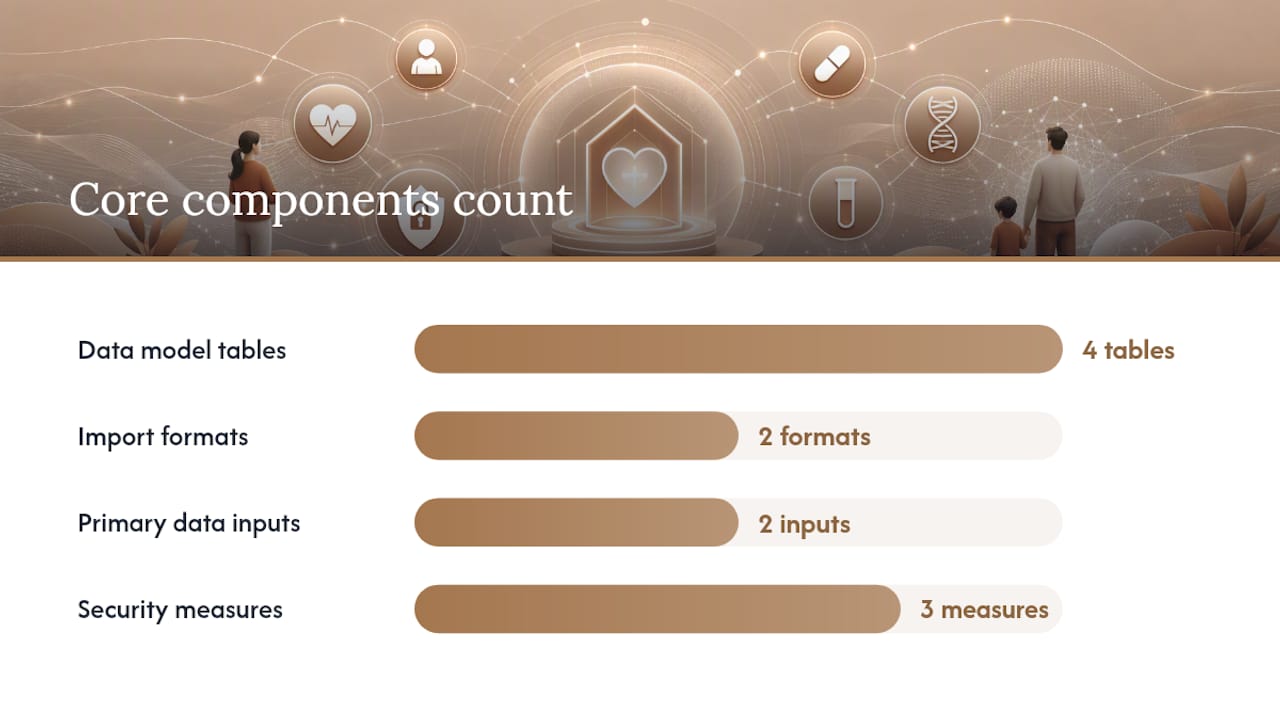
Minimal data model:
usertable: ID, name, timezonemeasurement_recordtable: metric name, value, unit, ISO 8601 timestamp, device_sourcenotetable: timestamp, text, linked measurement IDexport_logtable: export date, format, file path
Import and API notes:
- Accept CSV and JSON imports from Apple Health exports and Health Connect.
- Require ISO 8601 timestamps and a
device_sourcefield on every record to prevent duplicates. - Use Health Auto Export or Health Connect export paths as your primary data inputs.
Deployment basics:
- Containerize with Docker for portability.
- Schedule imports with a cron job or a lightweight cloud function (AWS Lambda, Cloudflare Workers).
- Encrypt the database at rest; use TLS for any web interface.
- Store encrypted backups on a separate volume or cloud bucket.
A solo developer building a fitness tracking web app with AI-assisted tools, GitHub, and Cloudflare found that a product requirements document and iterative security checks were the two steps most people skip — and the two that matter most. The holistic health tracking system guide covers architecture and data model decisions in more depth if you want a fuller blueprint.
Pro Tip: Add a device_source field to every import record from day one. Without it, you cannot distinguish a manual entry from a scale reading from a wearable sync — and deduplication becomes guesswork.
Privacy checklist and what this record actually is
This guide covers a consumer home record built from self-measured metrics, not a clinical EHR or provider medical record. That distinction matters for scope, not just terminology.
Privacy checklist:
- Review app permissions quarterly and revoke write access for any app you no longer actively use.
- Enable device passcode or biometric lock on the phone that holds your hub.
- If you use cloud backup, enable encryption on that backup folder.
- In Apple Health: Settings > Privacy > Health to see which apps have access; tap any app to revoke.
- In Google Health: Profile > Connections to remove third-party app access; for API-level connectors, check the app's own settings for developer token revocation.
Keep exports at least quarterly and remove stale device connections you no longer use. For a deeper look at data privacy in health tracking, including encryption and authentication settings, that resource covers the specifics.
Why your home health record matters more than you think
Most fitness advice focuses on what to do — lift more, eat less, sleep better. The harder problem is knowing whether what you are doing is actually working. A home digital health record solves that by turning scattered device readings into a continuous, personal dataset you actually own.
The insight that changed how I think about this: the record is not for motivation. It is for pattern recognition. A 90-day trend in lean mass tells you whether your training is building muscle or just burning glycogen. A sleep score correlated with resting heart rate tells you whether you are recovering or accumulating fatigue. None of that is visible from a single reading or a weekly weigh-in.
The setup described here takes under an hour. The maintenance is minutes per week. The payoff is a fitness picture that is genuinely yours — not locked in a vendor's app, not dependent on a subscription, and not reset every time you switch phones.
Uvirello's Smart Electronic Weight Scale: the right hardware to start with
The scale you use as your primary measurement device determines the quality of everything downstream. Uvirello's Smart Electronic Weight Scale reads body weight, body fat percentage, BMI, and muscle mass with high-precision sensors, and it connects directly to both Apple Health and Google Health via its companion app.
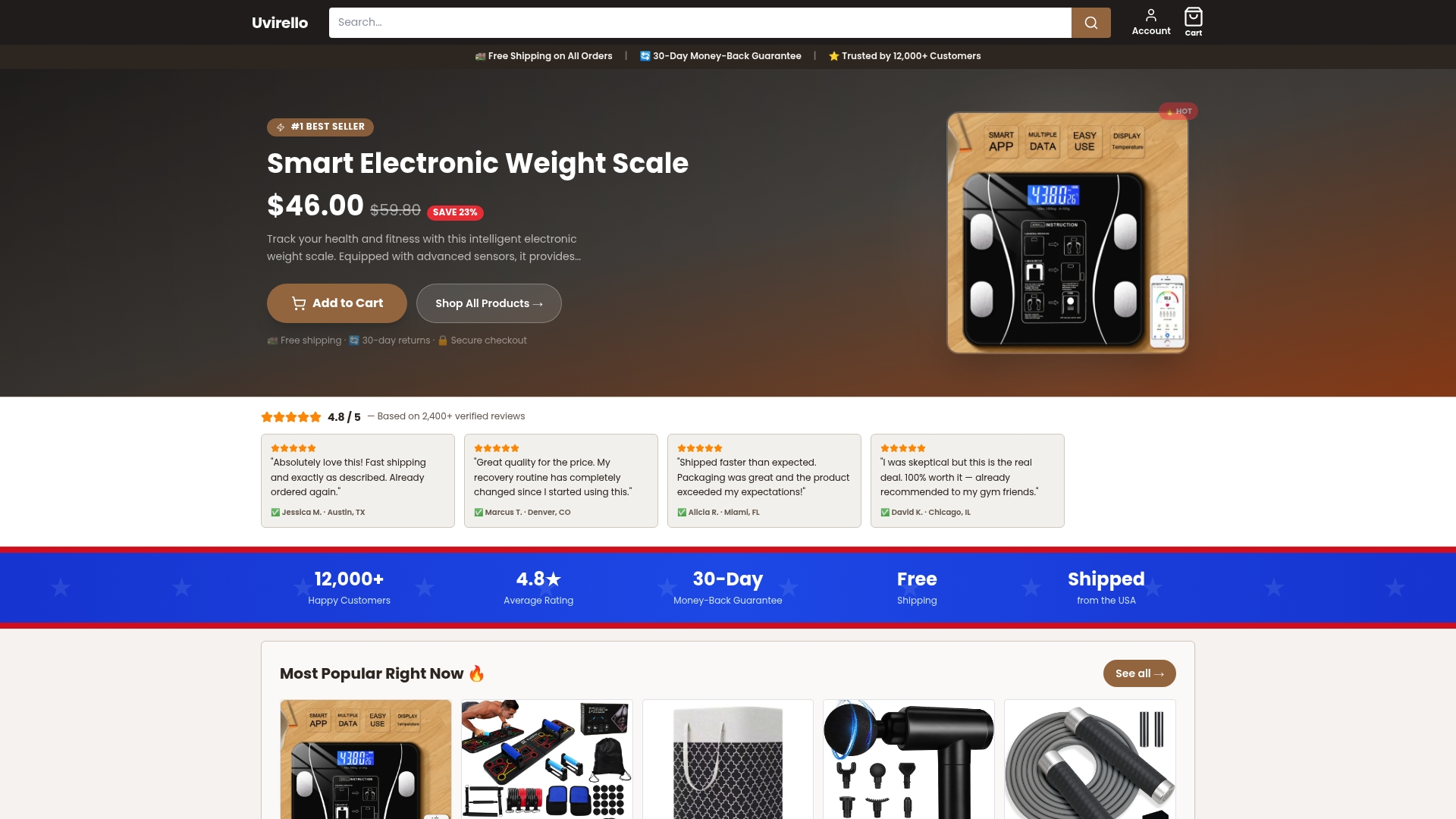
It is the hardware anchor this guide was built around. If you are setting up a home health record for the first time, starting with a scale that writes accurate body-composition data to your hub from day one removes the biggest variable in the system. Visit Uvirello to see the scale and place an order — it ships ready to pair.
Useful resources for setup, export, and deeper learning
- Apple Health: manage data sources and priority — official setup guide for Data Sources & Access on iPhone, iPad, and Apple Watch.
- Google Health: connect third-party apps — official guide for Health Connect (Android) and Apple Health (iPhone) connections.
- FitnessSyncer — third-party sync and export service for backing up data outside device vendor apps.
- Sync wellness data across devices — practical guidance on source ownership, one-day test audits, and duplicate prevention.
- Build your personal health tech stack — layered architecture overview for hub selection and visualization tools.
- DIY health monitoring with consumer tech — context notes, automation, and realistic expectations for a home monitoring system.
- Uvirello Smart Electronic Weight Scale — recommended hardware for body-composition tracking; 4.8/5 from 12,000+ customers, compatible with Apple Health and Google Health.
Sources
Duplicate entries are the most common accuracy problem in a home health record. They appear when two apps both have write permission for the same metric.
In Apple Health: go to the metric's detail view, tap Data Sources & Access, and drag your preferred source to the top. Apple Health prioritizes manual entries first, then iPhone/iPad/Apple Watch, then connected apps. If you see duplicate readings on the same timestamp, tap the entry and delete the one from the lower-priority source.
In Google Health: open Profile > Connections, find the app writing the duplicate, and remove its write permission for that metric. Then delete the duplicate entries manually from the metric's history view.
For ongoing hygiene, a simple audit routine keeps things clean:
- Manage Health data on your iPhone, iPad, or Apple Watch - Apple Support
- Connect third-party devices and apps to the Google Health app - Google Health Help Center
- FitnessSyncer
- Sync Wellness Data Across Devices the Smart Way
- How to Build Your Personal Health Tech Stack (2026 Guide)
- DIY Health Monitoring: Build a Personalized System with Consumer Tech
The core sync rule is straightforward: one hub, one writer per metric, native integrations before third-party connectors.
Pro Tip: After adding any new device or app, wait 24 hours, then check the metric's history for that day. If you see two entries at the same time, you have a duplicate writer. Fix it immediately — duplicates compound quickly.