
Check the battery first, then confirm whether your scale connects over Bluetooth or Wi-Fi and open the app to force a sync. If that doesn't work, restart the phone, the router, and the scale, then re-pair from scratch. Only reach for a factory reset or vendor support if that full sequence still doesn't bring your reading through.
TL;DR:
- Most connectivity issues are caused by low batteries, improper placement on carpet, or unassigned measurements, not hardware faults.
- Updating the app, enabling necessary permissions, and verifying account and profile settings resolve many "scale connects but no data appears" complaints.
- Bluetooth scales require close proximity and proper device pairing, while Wi-Fi scales need correct network band and router stability to sync reliably.
- Re-pairing involves full power cycling of the scale and device, with factory resets being a last resort after troubleshooting steps fail.
- A hardware upgrade to models like Uvirello's scale can prevent recurring issues by providing clearer indicators, easier pairing, and better firmware maintenance.
Table of Contents
- Why Is My Smart Scale Not Syncing? Start With the Basics
- App and Account Checks: Updates, Permissions, and Profile Problems
- Bluetooth vs. Wi-Fi: Which Checklist Fits Your Scale?
- How to Re-Pair and Force a Sync When Nothing Else Works
- When to Factory Reset or Call Support
- What Makes Uvirello's Scale Easier to Keep Synced
- Is Your Data Safe While a Smart Scale Syncs?
- Do Software Updates Actually Fix Syncing, or Cause It?
- Why Won't My Scale Connect to Certain Phones?
- How Do You Keep a Smart Scale Connected Long-Term?
- The Troubleshooting Order Most Guides Get Backwards
- If You're Tired of Fighting Your Scale, Consider Replacing It
- Sources
Why Is My Smart Scale Not Syncing? Start With the Basics
Most sync failures trace back to something boring: a dying battery, a scale sitting on carpet, or a reading that never got assigned to your profile. Vendor troubleshooting pages consistently list a low battery as the top cause of lost connectivity, so check that before touching any settings.
Pull up your scale's display. A flashing battery icon, a dim readout, or an error code like "out2" or "lo" almost always means the batteries need replacing, not the app troubleshooting you were about to attempt. Placement matters too. A scale rocking on carpet or tile grout won't read your weight consistently, and if it's more than a room away from your phone or router, Bluetooth and Wi-Fi signals both weaken fast.
- Swap in fresh batteries (AAA or AAA equivalents on most models), even if the old ones "still work" on other devices.
- Move the scale to a hard, level floor near where you'll be pairing it.
- Open your app's Devices or Settings menu and confirm the scale actually shows up as connected.
- Look for a queue of unassigned measurements sitting in limbo, waiting for you to confirm which profile they belong to.
Pro Tip: If your app shows a weight entry with no name attached to it, tap it. Most apps let you manually assign or resync a stuck measurement instead of losing it entirely.
App and Account Checks: Updates, Permissions, and Profile Problems
A perfectly good scale can sit there transmitting into the void if the app on the other end is outdated or locked out of the permissions it needs. This is the step people skip because "the app was working fine last week," but background updates change permission requirements more often than most users notice.
- Open the App Store or Google Play and check for a pending update. Scale manufacturers push app fixes regularly, and an old version is a frequent, invisible blocker.
- Go into your phone's settings and confirm Bluetooth, location (some apps require it for Bluetooth scanning), background app refresh, and notifications are all enabled for the scale's app.
- Double-check you're signed into the correct account. It sounds obvious until you realize a shared household phone logged into someone else's profile.
- Confirm the right user is selected inside the app, especially if the scale supports multiple user profiles.
- Find the upload queue or "unassigned measurements" screen and clear anything stuck there.
Fixing these four items resolves a surprising share of "my scale connects but nothing shows up" complaints, since the hardware was never the problem.
Bluetooth vs. Wi-Fi: Which Checklist Fits Your Scale?
Not every smart scale talks to your phone the same way, and mixing up the troubleshooting steps wastes time. Bluetooth scales need your phone nearby every time you step on; Wi-Fi scales talk directly to your router and can upload even when your phone is in another room.
Bluetooth scales:
- Turn Bluetooth on and confirm your phone can see the scale in its list of nearby devices.
- Disable Bluetooth on other nearby devices. Troubleshooting guides note that another phone or tablet can grab the connection first and lock your scale out.
- Forget the previous pairing entirely, then re-pair one device at a time.
Wi-Fi scales:
- Confirm the scale is joined to the correct network name. Many models only support 2.4GHz, not 5GHz, which trips people up on newer routers.
- Reboot the router and give it a minute to fully stabilize before retrying.
- Check whether the SSID or password changed recently. That alone silently disconnects Wi-Fi scales.
Smart home hubs, baby monitors, and mesh Wi-Fi extenders can all crowd the same frequencies and interfere with pairing, so isolate the scale near the router if problems persist.
How to Re-Pair and Force a Sync When Nothing Else Works
When the basics and app checks don't fix it, this sequence resolves the majority of remaining sync problems. Follow it in order rather than jumping around.
- In your phone's Bluetooth settings, forget the scale. Remove it from the app's device list too if it's listed there, then fully close the app (not just minimize it) and reboot your phone.
- Power-cycle the scale itself. Remove the batteries or hold the power button, wait 10 to 20 seconds, then restore power.
- If it's a Wi-Fi scale, restart your router and wait until the network stabilizes before opening the app and running through the "add a device" flow again.
- Force a manual sync in the app and confirm your latest reading actually appears. If it doesn't, reinstall the app, or on Android, clear the app's cache from your phone's storage settings.
Pro Tip: Removing batteries beats holding a power button on most models. Community troubleshooting threads on Reddit consistently show that a full power cycle with batteries out clears pairing conflicts that a soft restart doesn't.
iOS tends to prompt for Bluetooth and location permissions the first time you pair; Android sometimes buries those toggles in app-specific settings, so check there if pairing silently fails.
When to Factory Reset or Call Support
If the full restart sequence didn't bring your data through, a factory reset is the next step, not a first resort. Resetting wipes stored Wi-Fi credentials, paired devices, and sometimes unit preferences (kg vs lbs), so you'll set those up again from scratch.
Before contacting support, gather:
- Your scale's serial number, usually printed on the underside.
- The current firmware and app version numbers.
- A screenshot of the error message or the device list showing the disconnected status.
- A short list of exactly which steps you've already tried.
Vendor sequences that check power, then app and account, then power-cycle, re-pair, and only then factory reset before escalating to support tend to resolve issues faster than jumping straight to a reset. If the scale is still under warranty and the hardware itself seems faulty (won't power on, cracked display, dead sensors), ask directly whether you qualify for a replacement rather than a repair. Response times vary, but most manufacturers acknowledge a support ticket within a few business days.
What Makes Uvirello's Scale Easier to Keep Synced
A big share of sync complaints trace back to ambiguous battery indicators and clunky pairing flows, which is exactly where hardware design matters more than people expect. Uvirello's Smart Electronic Weight Scale was built with a clear battery status indicator and a straightforward one-time pairing process specifically to cut down on the guesswork covered above.
- Thousands of customers have rated the scale highly, reflecting strong satisfaction.
- The high-precision sensors track body fat percentage, BMI, and other body composition metrics beyond a basic weight readout.
- Firmware updates are pushed to close the exact gaps (permission quirks, band mismatches) that cause syncing complaints on older scale models.
Jacob, who covers home health tech for Uvirello, has spent years fielding these exact troubleshooting questions from readers and consistently points to battery quality and router band settings as the two most overlooked fixes.
Is Your Data Safe While a Smart Scale Syncs?
Every time your scale successfully connects, it's transmitting sensitive information: your weight, body fat percentage, and sometimes your name and profile photo, over Bluetooth or Wi-Fi to a server somewhere. That's worth pausing on, especially when you're troubleshooting a connection issue by loosening permissions to "just get it working."
Bluetooth transmissions between your scale and phone are typically encrypted at the protocol level, but the bigger privacy question is what happens after the data lands in the app. Read what permissions the app is actually requesting. Location access for Bluetooth scanning is legitimate on many phones; a request for contacts or full photo library access on a scale app is not.
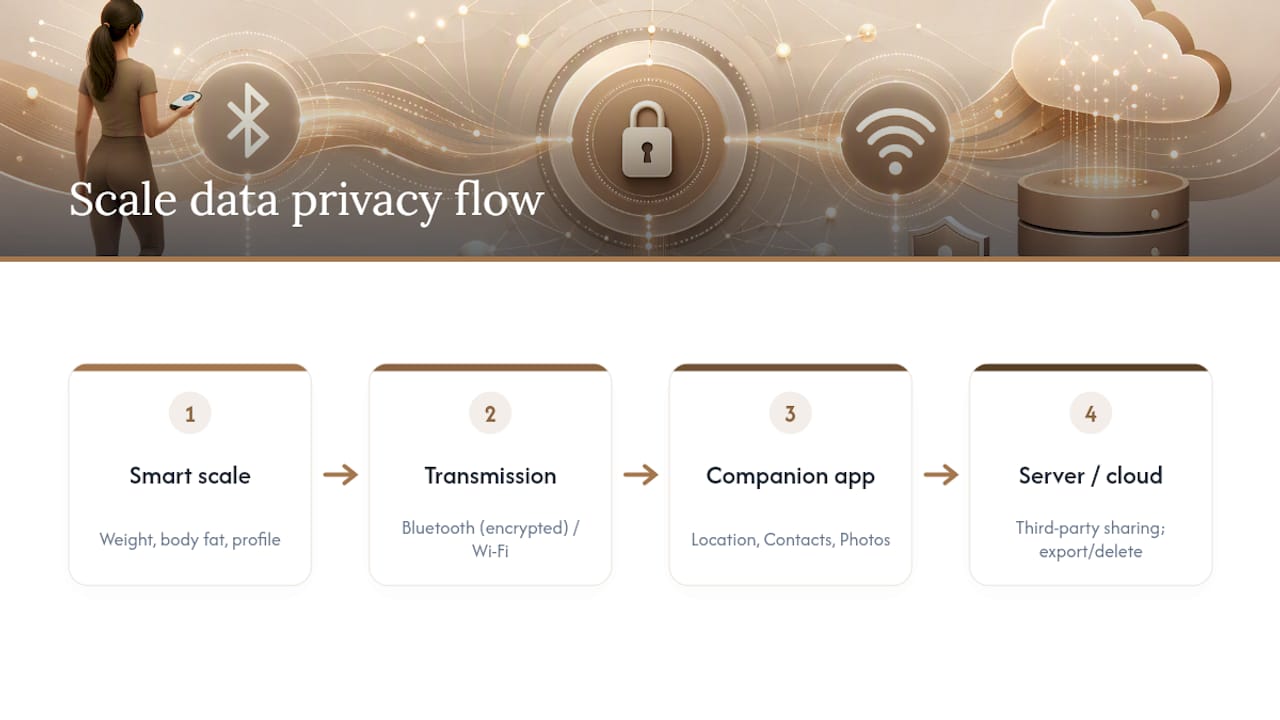
Be cautious about which measurements you let sync to shared or family accounts, particularly if you're using a scale that supports multiple household profiles. Body composition data is more sensitive than a bathroom-scale number, and once it's assigned to the wrong profile, it can be awkward to unwind.
Check your app's privacy settings for options to limit data sharing with third parties, disable ad tracking, or export and delete your history entirely. A reputable app-connected scale will make these controls easy to find rather than buried three menus deep, which is itself a decent signal of how seriously the manufacturer treats your data.
Do Software Updates Actually Fix Syncing, or Cause It?
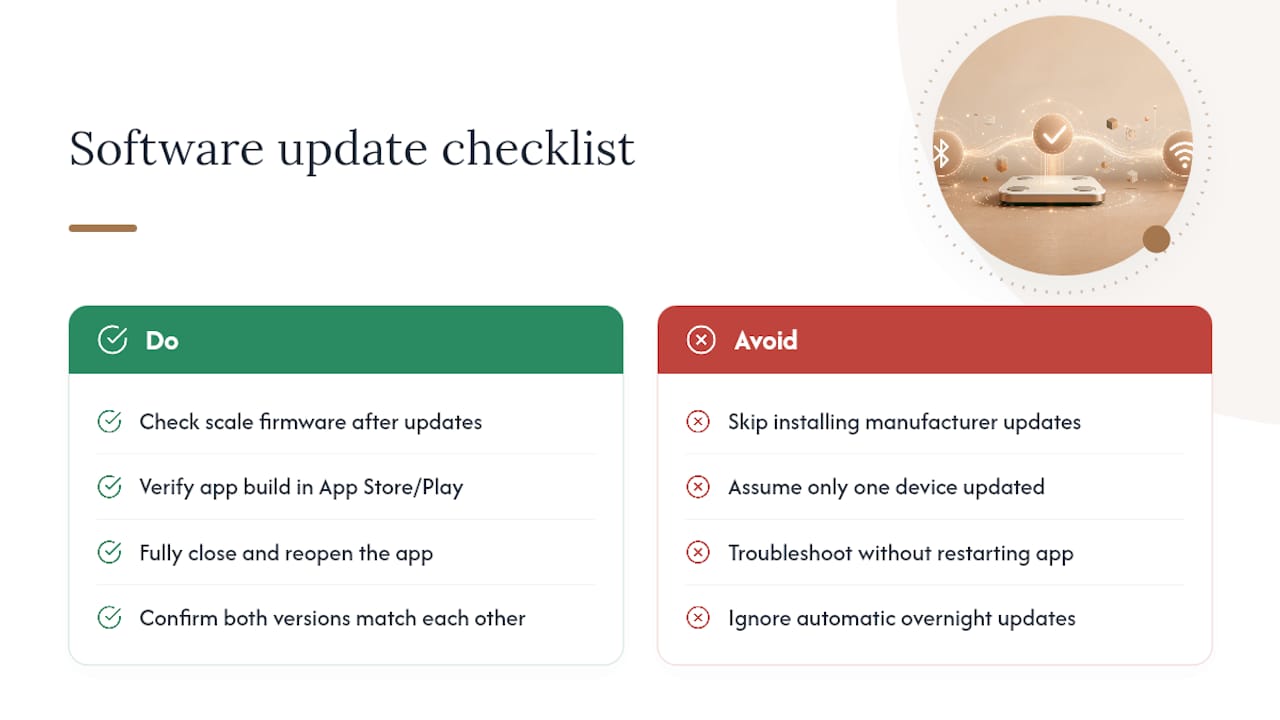
Both, depending on timing. A firmware or app update usually exists because the manufacturer patched a known Bluetooth or Wi-Fi bug, which means skipping updates leaves you running the exact code that caused problems for other users. But an update that lands mid-sync, or one you haven't restarted your phone after installing, can just as easily introduce a fresh mismatch between the scale's firmware version and the app's expected protocol.
That mismatch is more common than people assume. If your phone updates its app automatically overnight but your scale's firmware update requires a manual trigger inside the app, the two can drift out of sync with each other for days without you noticing, until a weigh-in simply doesn't upload.
The fix is straightforward: check both versions after any update, not just one. Open the app's settings or device page and confirm the scale firmware shows as current, then confirm the app itself is on its latest build in the App Store or Google Play listing. If you were mid-troubleshooting and an update rolled out during that window, fully close and reopen the app once before trying to sync again. A half-updated app session is a common, invisible cause of an otherwise correct troubleshooting sequence failing anyway.
Why Won't My Scale Connect to Certain Phones?
Not every phone and scale combination behaves identically, and that's rarely mentioned in generic troubleshooting guides. Older Android phones running versions several years behind current releases sometimes lack the Bluetooth Low Energy stack that newer scales expect, causing pairing to hang indefinitely rather than fail with a clear error. iPhones tend to be more consistent, but iOS versions differ in how aggressively they require location permission for Bluetooth device scanning, a requirement that catches people off guard since it seems unrelated to weighing yourself.
Tablets and secondary phones on a shared family plan introduce another wrinkle: if two devices both have the scale's app installed and both try to claim the Bluetooth connection, neither may sync reliably until one is fully logged out or uninstalled. Foldable phones and phones with aggressive battery-saving modes can also throttle background Bluetooth scanning, which looks identical to a scale problem but is actually the phone deciding your app doesn't need to run in the background.
Before assuming your scale is defective, check the manufacturer's minimum OS requirement, usually listed on the product page or in the app's own compatibility notes, and compare it against your phone's actual version under Settings. A scale that's a few years old paired with a phone that just jumped several OS versions is a common, quietly overlooked mismatch.
How Do You Keep a Smart Scale Connected Long-Term?
Getting a sync working once is easy. Keeping it working for a year without repeating this entire troubleshooting process takes a few habits.
Replace batteries on a schedule rather than waiting for a low-battery warning. Most scales give weeks of notice before dying completely, but a battery that's marginal produces the same intermittent connection drops as one that's nearly dead, just less predictably.
Leave the companion app installed and let it update automatically rather than disabling background refresh to save battery. Every version skipped is a version further from what the scale's firmware expects, and that gap widens the longer you go without opening the app.
Avoid moving the scale to a spot farther from your router or phone's usual location. A scale that worked fine on a bathroom shelf next to your phone charger can lose Wi-Fi range entirely if you relocate it to a basement or a far bedroom.
Finally, resist the urge to add new smart-home devices right next to your scale's charging or storage spot. Every additional Bluetooth or Wi-Fi device in that space is one more thing competing for the same signal, and scales tend to be the first casualty when a room gets crowded with connected gadgets.
The Troubleshooting Order Most Guides Get Backwards
Most sync-fix content jumps straight to re-pairing and factory resets because those steps feel more technical and more satisfying to write about. That's backwards. The evidence from vendor support pages consistently ranks battery and power checks as the single most common fix, yet it's the step buried at the bottom of most articles or skipped entirely in favor of app-level troubleshooting.
The second misconception worth pushing back on: people treat Bluetooth and Wi-Fi troubleshooting as interchangeable. They're not. Rebooting a router does nothing for a Bluetooth-only scale, and forgetting a Bluetooth pairing does nothing for a Wi-Fi scale that's actually failing because of an SSID change. Diagnosing which connection type you're dealing with before touching any settings saves real time.
What actually deserves priority is unglamorous: fresh batteries, a level surface, and confirming your connection type before anything else. A factory reset should be your fourth or fifth move, not your first, and support tickets should come with the exact information vendors ask for already gathered. That preparation alone shaves days off a resolution.
— Jacob
If You're Tired of Fighting Your Scale, Consider Replacing It
Repeated sync failures on an older scale usually mean aging hardware, not something you're doing wrong. Batteries degrade, Bluetooth chips age, and firmware support eventually stops for models manufacturers no longer update.
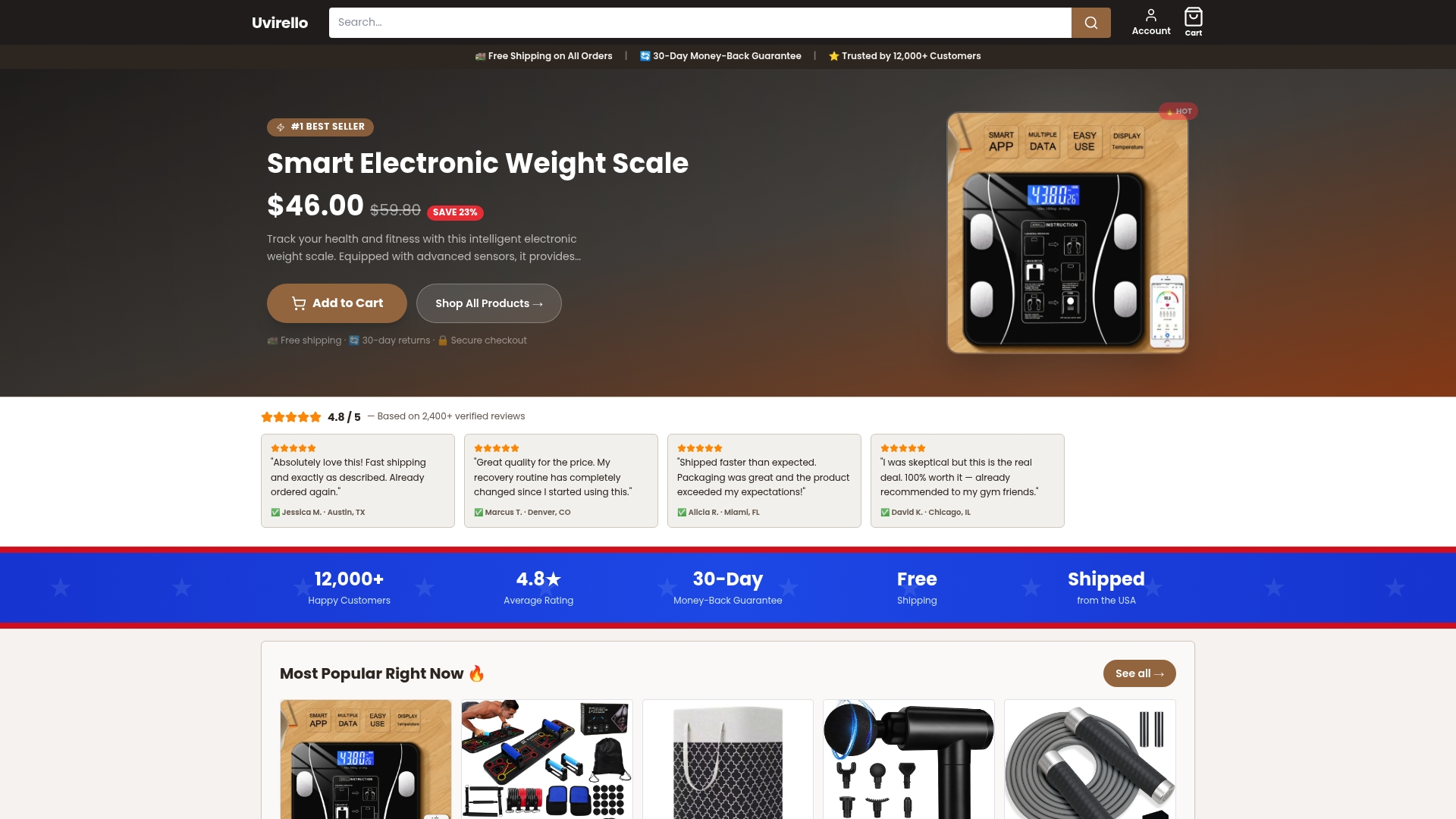
Uvirello's Smart Electronic Weight Scale was built to sidestep the exact problems covered in this guide: a clear battery indicator instead of a vague low-power icon, a straightforward one-time pairing flow, and firmware updates that keep the app and scale in step with each other. It tracks body fat percentage, BMI, and other body composition metrics beyond a basic number on a screen, and it's backed by ratings from more than 12,000 customers averaging 4.8 out of 5. If your current scale has become a recurring troubleshooting project instead of a tool you trust, check out the Uvirello Smart Electronic Weight Scale and see whether a cleaner sync experience is worth the switch.