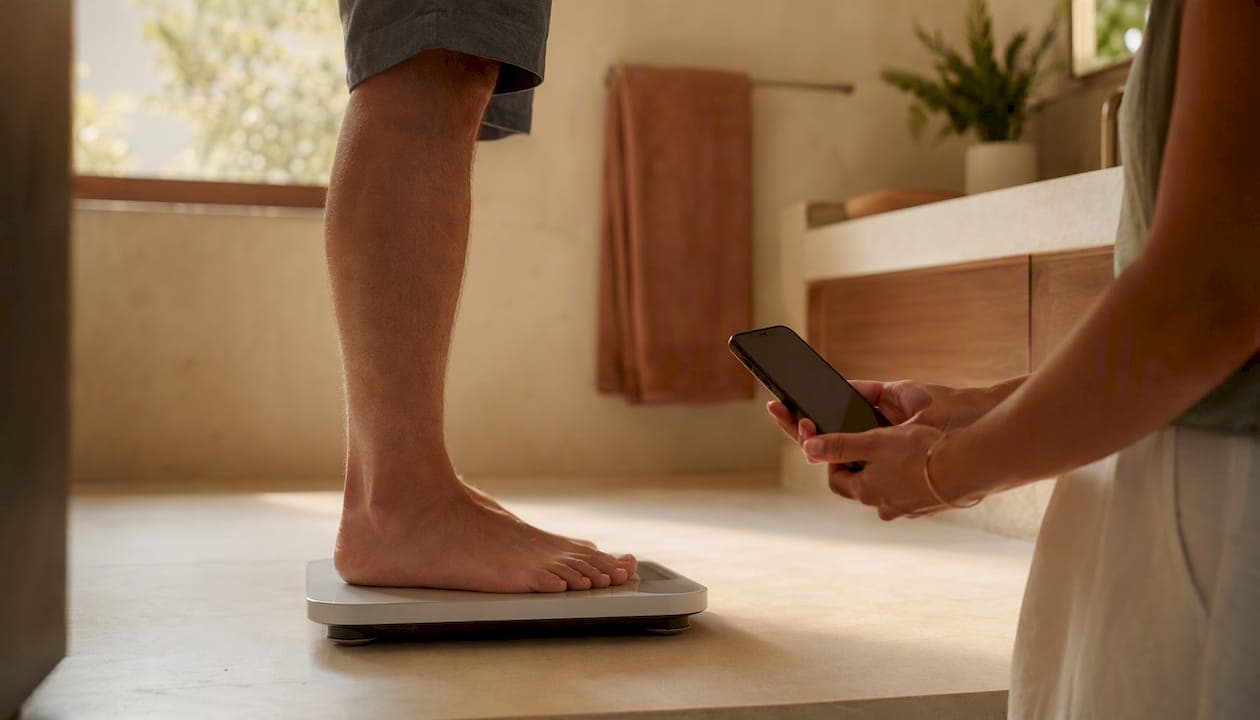
Yes, the Smart Electronic Weight Scale supports separate profiles for every person in your household, and getting each one running takes less time than brewing coffee. Open the app, tap Add User, then have that person step on the scale once to register their baseline. That's it.
The scale backs this up with real body composition tracking. Every profile gets its own weight, BMI, and body fat percentage readings, pulled from the same high-precision sensors that Uvirello built the device around. Over 12,000 customers have rated the scale 4.8 out of 5, and Uvirello's help center guide on multi-user setups walks through edge cases if your household hits a snag.
Here's the fastest path to your first profile:
- Download the app (or open it if it's already installed) and sign into your account.
- Tap Add User or Family, then enter the new person's name and basic details.
- Have that person step on the scale barefoot. The reading locks in as their baseline.
A few things worth knowing before you add everyone:
- Each profile tracks its own trend line, so no one's data gets mixed up with a sibling's or spouse's.
- Kids and adults can both have profiles, but the app treats them differently for privacy purposes.
- You can edit, merge, or delete a profile later without losing the whole family's history.
Key Takeaways
Setting up family profiles works best when every household member gets an accurate baseline weigh-in and their own synced data stream from day one.
| Point | Details |
|---|---|
| Register each profile properly | Enter name, birthdate, sex, and height accurately, then weigh once to lock in the baseline. |
| Use manual selection when needed | Overlapping weights between family members cause mismatches; manual selection fixes it instantly. |
| Enable per-profile syncing | Grant app permissions individually so each person's data flows to their own health app. |
| Export before deleting | Profile deletion is permanent, so save a CSV export if you might need the history later. |
| Choose Uvirello for multi-user households | The Smart Electronic Weight Scale supports separate family profiles with individual trend tracking and body composition metrics. |
Table of Contents
- What a Family Profile Actually Stores
- How to Add Each Family Member Step by Step
- How the Scale Knows Who's Standing on It
- Syncing Profiles With Your Phone and Health Apps
- Editing, Merging, and Deleting Profiles
- Privacy, Parental Controls, and Setting Up Kids' Profiles
- Getting Accurate Readings Every Time
- Fixing Common Profile and Pairing Problems
- Why Uvirello Built Family Profiles Into the Scale
- Get Every Family Member Tracking Accurately
- Where to Find Official Setup Help
- Frequently Asked Questions
What a Family Profile Actually Stores
A profile is more than a name tag. It's a small data record that tells the scale who's standing on it and how to interpret what it reads.
When you create one, you'll typically fill in:
- Name (first name is usually enough for household use)
- Birthdate (used to calculate age-adjusted metrics)
- Sex (affects body fat percentage formulas)
- Height (required for BMI)
- Baseline weight (the first reading, used for recognition)
- Photo or avatar (optional, but genuinely useful in busy households)
- Role (child or adult, which changes what data controls apply)
Each of these fields feeds directly into the metrics your profile displays: weight, BMI, body fat percentage, estimated muscle mass, and a running history graph. Miss the height field and your BMI number will be wrong. Guess at the birthdate and your body fat estimate drifts too.
Separate profiles matter most in mixed households. A parent tracking weight loss, a teenager training for a sport, and a grandparent monitoring muscle mass after a hip surgery all need their own baseline. Lump them into one shared login and the trend charts become useless. 12,000+ reviewers rated the scale highly in part because it handles this kind of household complexity without forcing everyone onto one blended profile.

Pro Tip: Weigh in with normal daily clothing minus shoes and jackets for your very first baseline reading. A baseline set right after a big meal or an intense workout throws off the scale's recognition logic for weeks afterward.
How to Add Each Family Member Step by Step
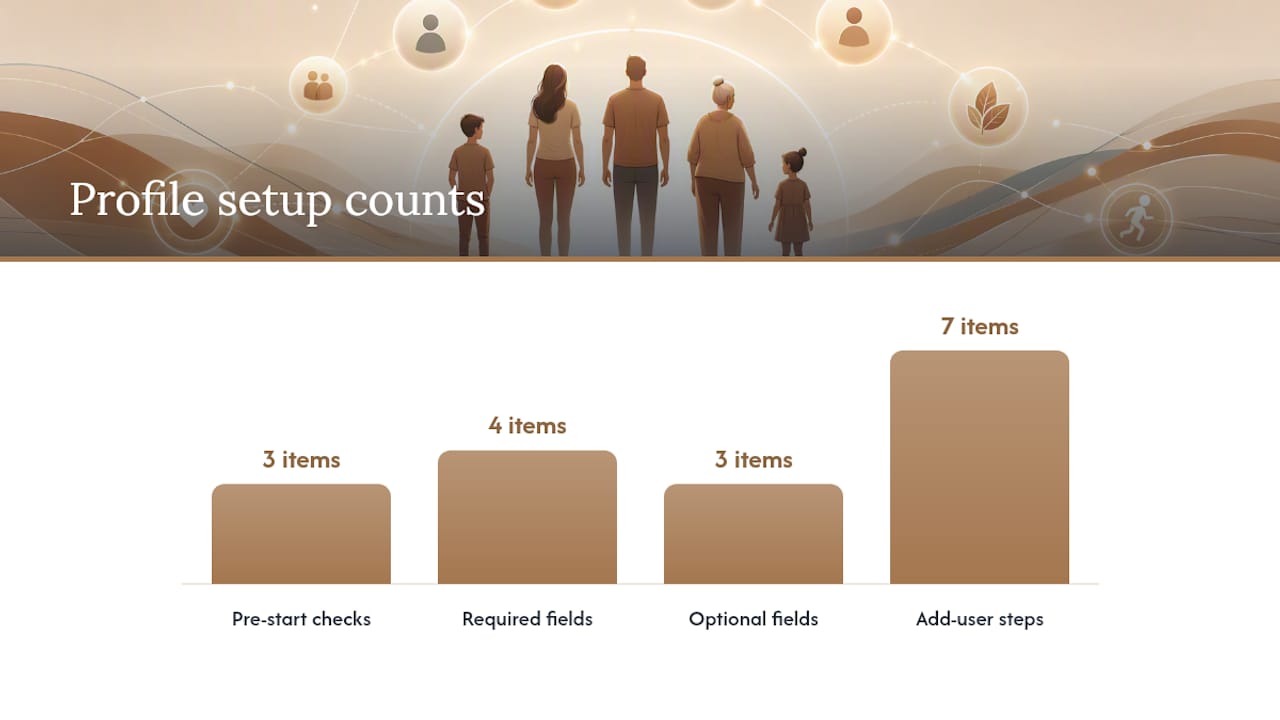
Before you start, confirm three things: the app is installed and updated, you're signed into an account, and the scale is powered on with Bluetooth ready or connected to your home Wi-Fi.
From there, adding a profile follows a predictable pattern, one that Uvirello's own setup guide and similar guidance from other scale makers, including a Vchon Electronics walkthrough, both describe the same way:
- Open the app and go to Profile or Family.
- Tap Add New User.
- Enter name, birthdate, sex, and height.
- Select a role (adult or child).
- Add a photo if you want faster visual recognition later.
- Save the profile.
- Have that person step on the scale. This single weigh-in registers their baseline and finishes setup.
The app will immediately show a first reading, then prompt you to add the next family member. Required fields are name, birthdate, sex, and height. Everything else, photo, role labels, notes, is optional but recommended if your household has more than two or three people using the scale regularly.
A couple of things speed this up:
- Add every household profile in one sitting rather than one at a time over several days. It keeps baseline weights consistent and current.
- If you're setting up screenshots for reference (a spouse walking through it later, for instance), capture the Add User screen and the confirmation screen after the first weigh-in. Those two are where people get stuck.
Pro Tip: If you have four or more people in the house, set up profiles for the heaviest and lightest members first. That gives the scale's recognition system its widest reference range right away, which reduces mix-ups for everyone added afterward.
How the Scale Knows Who's Standing on It
Recognition works primarily off weight ranges compared against each profile's baseline and history, not facial recognition or fingerprints. The scale checks the new reading against stored profiles and picks the closest match.
That logic breaks down in a few predictable situations:
- Two adults with weights within a few pounds of each other.
- A teenager whose weight overlaps with a parent's.
- Someone who lost or gained 15+ pounds quickly, drifting away from their own baseline.
- A postpartum body composition shift that no longer matches the pre-pregnancy profile.
The fix in each case is largely the same: manually select the correct profile in the app before stepping on the scale rather than relying on auto-detection. It takes two extra seconds and eliminates the guesswork entirely. Adding a photo to each profile also helps, since the app displays those thumbnails during manual selection, making it fast to tap the right one even for kids who can't read yet.
If you notice mismatched readings for more than a day or two, update the baseline weight in that person's profile rather than letting the system keep guessing against outdated data.
Syncing Profiles With Your Phone and Health Apps
Yes, each profile can sync its own data to a personal health app, but only after you grant the right permissions inside the scale app itself.
Pairing and enabling sync follows this order:
- Pair the scale to your phone via Bluetooth (or confirm Wi-Fi connection if you're syncing from anywhere in the house).
- Open the connected profile in the app.
- Go to Integrations or Connected Apps.
- Select Apple Health, Google Fit, or another supported app.
- Grant the specific permissions requested (weight, body fat, BMI).
- Confirm sync is active by checking that a recent reading appears in the third-party app.
Before you finish, run through this permissions checklist:
- Confirm whether the app is requesting read-only or read/write access.
- Check if permissions apply per-metric (weight vs. body fat vs. muscle mass) or as a bundle.
- Verify the sync is tied to the individual profile, not the master account, so a teenager's data doesn't sync to a parent's fitness app by mistake.
- Know where to revoke access if you change your mind later.
Uvirello's guide on building a complete health tracking system recommends syncing consistently rather than occasionally, since fragmented data across apps makes trend analysis nearly impossible. Manage all of this from the scale app's settings menu, under each profile's individual page, not from a global account setting.
Editing, Merging, and Deleting Profiles
Profile management lives in the same Profile or Family section where you created each account. From there you can update a name, correct a birthdate, or adjust height as kids grow.
If you accidentally created two profiles for the same person, most scale platforms, including guidance documented by Withings support for similar multi-user devices, handle merges through a support request rather than an in-app button, since merging combines two separate histories and any mismatch between them has to be resolved manually.
To export or transfer data:
- Open the profile you want to export.
- Go to Data or History.
- Choose Export and select CSV or a similar format.
- Save the file before making any other changes.
- If transferring ownership to another account, do this after exporting, since ownership changes sometimes reset visible history on the receiving end.
Deleting a profile is permanent. Once removed, the weight history, trend charts, and body composition records disappear unless you exported them first. If you're unsure whether you'll need old data again, export before you delete. There's no undo button waiting on the other side.
Privacy, Parental Controls, and Setting Up Kids' Profiles
The app supports child profiles with parental controls built in, and setting one up takes just a few extra steps compared to an adult profile.
To add a child correctly:
- Select "child" as the role during setup, not "adult."
- Enter an accurate birthdate, since this affects how body composition estimates are calculated for growing bodies.
- Designate yourself as the account holder or legal guardian for that profile.
- Limit what data can be exported or shared from a child's profile through the parental controls menu.
A caution worth taking seriously: if profiles are grouped under one shared account, anyone with access to that account can view every family member's history, including a child's weight trend over months or years. That's convenient for a parent monitoring a growing kid, but it's worth a second thought before adding a teenager who might want more privacy.
Best practices that hold up in most households: give teenagers their own separate login once they're old enough to want it, keep sharing limited for children under 16, and check your connected apps every few months to confirm nothing outdated is still pulling data it shouldn't. Family tracking tools work best when caregivers stay intentional about who sees what.
Pro Tip: Review your connected apps list twice a year, not just once at setup. Old integrations quietly keep syncing long after you've stopped using them.
Getting Accurate Readings Every Time
Consistent weighing conditions produce the most comparable trend data, and that consistency matters more than any single reading.
The routine that works best: weigh at the same time of day, ideally right after waking up, wearing minimal clothing, with bare and dry feet on a firm flat surface. Skip the bathroom rug. Skip weighing right after a shower or a workout.
| Helps accuracy | Hurts accuracy |
|---|---|
| Same time each morning | Weighing at random times throughout the day |
| Bare, dry feet | Wet feet right after a shower |
| Firm, flat flooring | Carpet or uneven surfaces |
| Minimal clothing | Heavy clothes, belts, or shoes |
| Rested state | Right after intense exercise |
Body composition estimates from any home scale, including this one, are meant for general wellness tracking, not medical diagnosis. Pregnant users should treat body fat and weight readings as reference points only, since fluid retention and rapid changes during pregnancy distort standard formulas. The same caution applies to very young children, whose body composition estimates are far less reliable than an adult's, given how differently kids' bodies distribute fat and muscle. For a deeper look at why consistency beats one-off readings, the pattern over weeks tells you far more than any single Tuesday morning number.
Fixing Common Profile and Pairing Problems
Try a restart, a re-weigh, and manual profile selection before anything more complicated. That sequence resolves most issues in under two minutes.
Quick fixes by problem:
- Wrong profile assigned: Manually select the correct profile before stepping on the scale next time, then update that profile's baseline weight.
- Bluetooth won't pair: Turn Bluetooth off and back on, close and reopen the app, and confirm the scale is within a few feet of your phone.
- App doesn't detect the scale: Restart the scale by removing and reinserting the batteries, then reopen the app.
- Readings look off: Recheck the calibration on a hard, flat surface and confirm you're not standing on carpet or an uneven tile.
Before contacting support, gather your app version number, the scale's firmware version, the email tied to your account, and the scale's serial number, usually printed on the underside. Having these ready cuts resolution time significantly. Reach out through the app's built-in support chat or Uvirello's help center for the fastest response, and describe the exact scenario (which profile, what reading, what you already tried) rather than a general "it's not working" message.
Why Uvirello Built Family Profiles Into the Scale
Uvirello designed this scale around one simple idea: household wellness only works if every person's data stays accurate and separate. A shared scale with one blended profile tells you almost nothing useful after the second week.
That's why the multi-user system got the same attention as the sensors themselves. The scale's high-precision sensors exist to make individual body composition metrics trustworthy, not just averaged household noise. The 12,000+ reviews averaging 4.8 out of 5 reflect a lot of households doing exactly what this article walks through: parents tracking their own goals while keeping an eye on a teenager's or a grandparent's trends too.
The educational content Uvirello publishes, this guide included, exists because setup friction is usually where good intentions stall out. A profile that takes three minutes to create gets used. One that takes twenty doesn't.
Get Every Family Member Tracking Accurately
If you already own the scale, the fastest path forward is the one outlined above: add each profile tonight, weigh in once per person, and let a week of data build before you draw any conclusions. If you're still deciding whether this scale fits your household, the Smart Electronic Weight Scale product page lays out the exact sensors and metrics behind every profile, including body fat percentage and BMI tracking built for multi-person homes.
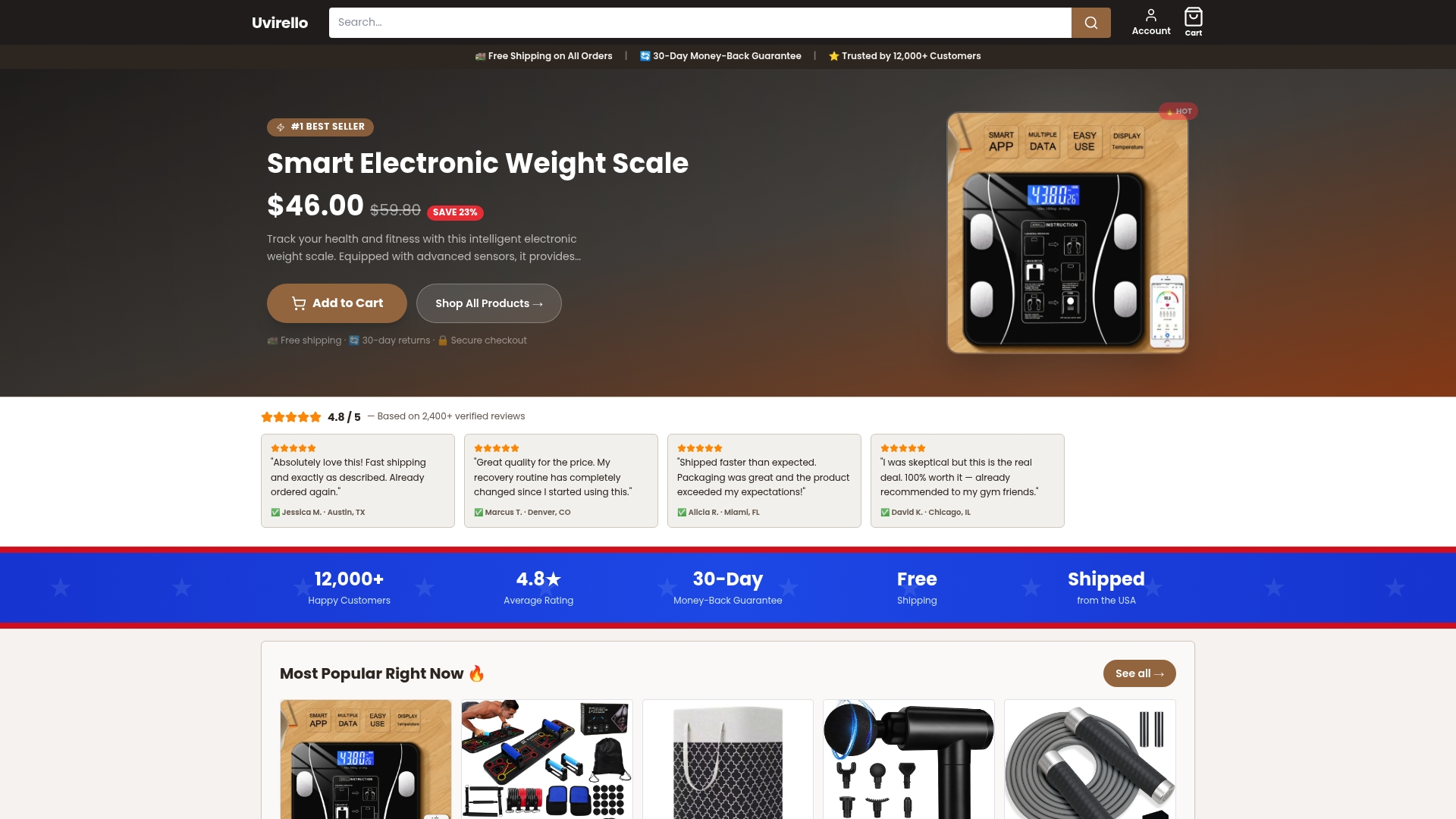
What makes this scale a fit for larger households specifically is the combination readers rarely find bundled together: real per-profile trend history, straightforward child-profile controls, and sync options that don't require juggling three separate apps. Families comparing modern wellness tracking tools consistently run into the same tradeoff, powerful features locked behind clunky multi-user setups. This scale skips that tradeoff entirely.
If you haven't ordered yet, check current availability and pricing on the Uvirello product page and get your first family profile running the same day it arrives.
Where to Find Official Setup Help
For anything this article didn't fully answer, three official sources cover the rest. The product page lists full specs and the sensor technology behind every metric. Uvirello's multi-user setup guide covers profile creation and recognition troubleshooting in more depth than any single article can. And the holistic health tracking guide is the right stop if you're trying to connect the scale to a broader tracking routine across multiple apps.
Use the product page when you're still deciding on specs, the setup guide when you're mid-installation and stuck, and the tracking system guide once your profiles are running and you want to build a longer-term habit around the data.
Frequently Asked Questions
Can multiple family members use the same smart scale? Yes. The scale supports separate profiles for each household member, with individual weight, BMI, and body fat tracking kept apart under each person's own account.
How many family profiles can I create? Most households add anywhere from two to six profiles without issue, covering parents, kids, and sometimes grandparents living in the same home.
Does the scale automatically know who's stepping on it? It compares the new reading against stored baseline weights and picks the closest match. When two people have similar weights, manual profile selection is more reliable than auto-detection.
Can I set up a profile for my child? Yes. Select the child role during setup and enter an accurate birthdate, which affects how the app calculates age-adjusted body composition estimates.
What happens if I delete a profile by mistake? Deletion is permanent unless you exported the data first. Always export a profile's history to CSV before removing it if there's any chance you'll want the records later.